


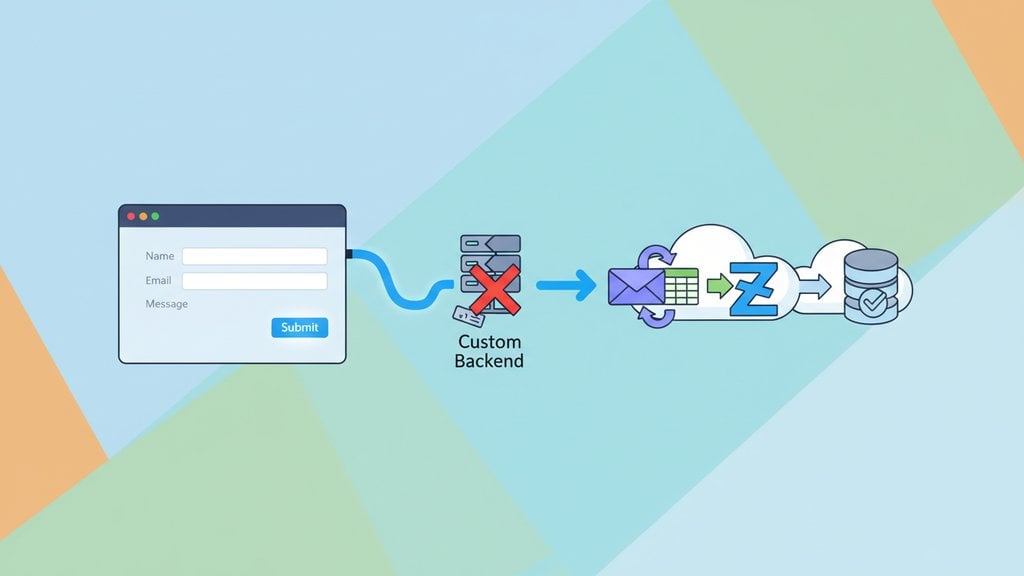
A Webflow contact form looks great out of the box, but Webflow only emails you the submission data — it does not store entries in a database, connect to your CRM, or trigger any custom logic. If you need more than a basic email notification, you have to route your webflow form submissions through an external service. The good news is you can do this without writing a single line of backend code.
Content Table
What Webflow Gives You by Default
Webflow's built-in form handler does three things: sends an email notification to the site owner, shows a success message, and logs submissions in the Webflow dashboard (on paid plans). That covers basic contact forms on small sites, but it breaks down fast when you need any of the following:
- Auto-responders to the person who filled in the form
- Submissions forwarded to a specific team inbox or CRM
- Conditional logic (e.g., route leads by product interest)
- Spam filtering beyond Webflow's basic honeypot
- A reliable delivery record with timestamps and retries
None of these are available natively. You need an external layer, and there are three realistic ways to add one.
Native Integrations - Zapier and Make
Webflow has a direct integration with Zapier and Make (formerly Integromat). When a new form submission arrives, the trigger fires and you can chain any action: add a row to Google Sheets, create a HubSpot contact, send a Slack message, and so on.
This is the no-code path most designers reach for first. The setup looks like this:
- In Webflow, go to Project Settings > Integrations and connect your Zapier account.
- In Zapier, create a new Zap with Webflow - New Form Submission as the trigger.
- Select the specific form by name.
- Add your action step (Gmail, Slack, Airtable, etc.).
- Test with a live submission and turn the Zap on.
Make is cheaper for complex workflows, but both platforms add a dependency: if Zapier or Make goes down or your account hits a limit, submissions silently fail or queue up.
Using a Webflow Webhook
A Webflow webhook is a more direct route. Webflow fires an HTTP POST to a URL you specify every time a form is submitted. You control the receiving endpoint, so you can do anything with the payload.
To set one up:
- Go to Project Settings > Integrations > Webhooks in Webflow.
- Click Add Webhook , choose the Form Submission trigger.
- Paste the endpoint URL of your receiving service.
- Save and test with a real submission.
The payload Webflow sends is a JSON object containing all field values, the form name, and site metadata. A typical payload looks like this:
{
  "name": "Contact Form",
  "site": "my-webflow-site",
  "data": {
    "Name": "Jane Smith",
    "Email": "jane@example.com",
    "Message": "Hi, I'd like a quote."
  },
  "submittedAt": "2024-11-15T10:22:00Z"
}
The catch: you need something to receive that webhook. Options include a small Cloudflare Worker , a Pipedream workflow, or a dedicated form backend. Writing your own receiver is exactly the "custom backend" problem this article is trying to help you avoid. That is where form-to-email services become the cleanest solution.
Replace the Form Endpoint with a Form Service
Instead of using Webflow's form handler at all, you can point your form's
action
attribute at a third-party form service. The service receives the POST, validates it, filters spam, and emails you the results. No backend required on your side.
The workflow in Webflow is:
- In the Webflow Designer, select your form element.
-
In the
Form Settings
panel, set the
Action
field to your form service endpoint URL (e.g.,
https://sendform.net/!your-form-id). - Set the Method to POST .
-
Make sure each input has a
nameattribute - Webflow sets these by default. - Publish the site and test a submission.
This approach bypasses Webflow's form handler entirely. The submission goes straight from the visitor's browser to the form service. You get the email, the service handles retries and spam, and Webflow is just the UI layer.
This same pattern works for any static or no-code site. If you are also hosting on GitHub Pages or Cloudflare Pages, the article on hosting a static website for free with working contact forms covers the exact same approach.
Sendform vs. the Alternatives
Several form services work with Webflow. Here is how the main options compare on the things that actually matter for a contact form setup:
| Service | Free Tier | Setup Complexity | Custom Redirect | Spam Filtering | GDPR-Friendly |
|---|---|---|---|---|---|
| Sendform | Yes | Paste one URL | Yes | Yes | Yes |
| Formspree | 50 submissions/month | Register + paste URL | Paid only | Basic (paid for reCAPTCHA) | Partial |
| Netlify Forms | 100 submissions/month | Netlify hosting required | Yes | Yes | Partial |
| Zapier (via webhook) | 100 tasks/month | Multi-step workflow | Manual | None built-in | Depends on Zap |
| Basin | 100 submissions/month | Register + paste URL | Yes | Yes | Partial |
Sendform stands out for a few concrete reasons beyond what fits in a table:
- Zero-friction setup: You get a form endpoint URL without creating an account first. Paste it into Webflow's Action field and you are done.
- No submission storage by default: Sendform emails the data and does not retain it on their servers, which is the right default for GDPR compliance. Competitors like Formspree store all submissions in their dashboard, which means your users' data lives on a third-party server indefinitely.
- Developer-friendly but no-code usable: Unlike Zapier, there is no workflow to maintain. Unlike Netlify Forms, it is not tied to a specific hosting provider - it works with Webflow, GitHub Pages, or any other host.
- Honest free tier: No hidden "upgrade to unlock redirects" walls that other services use to push you to paid plans.
Which Approach Should You Pick?
The right answer depends on what you actually need after the form is submitted:
- Just email notifications: Use Sendform. Paste the endpoint URL into Webflow's Action field, done in two minutes.
- Email + CRM or spreadsheet sync: Use Sendform for the email delivery and optionally add a Zapier step triggered by the incoming email, or use Sendform's webhook output if available on your plan.
- Complex multi-step automation: A Webflow webhook into Make or Zapier makes sense here, but budget for the paid tier.
- You are already on Netlify: Netlify Forms is fine for simple cases, but you will hit the 100/month ceiling fast on any active site.
For the vast majority of Webflow contact forms - a name, email, and message field that needs to land in your inbox reliably - Sendform is the fastest, cleanest path. No backend, no monthly task limits to watch, and no submission data sitting in a third-party dashboard you forgot to delete.

Handle your Webflow contact form without writing a backend
Sendform gives you a ready-made form endpoint you can paste directly into Webflow's Action field - your webflow form submissions arrive in your inbox instantly, with spam filtering and GDPR-friendly defaults included.
Try Sendform Free →
When you point Webflow's form Action at an external endpoint, Webflow's built-in success state will no longer trigger automatically. Most form services handle this by redirecting to a thank-you page you specify. In Sendform, you set a redirect URL in your form settings, so visitors land on your custom confirmation page after submitting. Alternatively, you can use JavaScript to intercept the form submit event, POST via fetch(), and show the Webflow success state manually.
Yes. Under Project Settings > Integrations > Webhooks, you can add a webhook that fires on every new form submission. Webflow sends a JSON POST to your specified URL containing all field values, the form name, and a timestamp. This requires a receiving endpoint - a serverless function, a Pipedream workflow, or a form service that accepts webhooks. The webhook feature is available on Webflow's CMS and Business plans.
Zapier sits between Webflow and your destination (email, CRM, etc.) and adds a workflow layer. It is powerful for multi-step automation but costs money beyond 100 tasks per month and adds a failure point. Sendform is a direct form endpoint - submissions go straight from the browser to Sendform, which emails you immediately. There is no workflow to maintain, no task counter, and no risk of a Zap breaking silently. For straightforward contact forms, Sendform is faster to set up and more reliable day-to-day.
It depends on the service. Services that store submissions in their own database (Formspree, Basin, Netlify Forms) act as data processors, which means you need a Data Processing Agreement and must disclose them in your privacy policy. Sendform is designed to forward and not retain submission data by default, which significantly reduces the compliance burden. Regardless of which service you use, you should update your privacy policy to mention how contact form data is handled and transmitted.
Yes, and you have a few options. Most form services including Sendform include built-in spam filtering on their end. You can also add a honeypot field - a hidden input that bots fill in but real users do not - and the receiving service ignores submissions where that field has a value. For high-traffic forms, services that support reCAPTCHA v3 or hCaptcha give you an extra layer. Webflow's own spam filter only applies when you use Webflow's native form handler, so switching to an external endpoint means relying on the service's spam tools.
No. Pointing the form's Action attribute at an external URL works on any Webflow plan, including the free Starter plan, because you are simply changing an HTML attribute on a published page. The restriction on free plans is that Webflow's own form handling (dashboard storage, email notifications through Webflow) requires a site plan. Using an external service like Sendform sidesteps that restriction entirely - the form just POSTs to Sendform's servers regardless of your Webflow plan level.