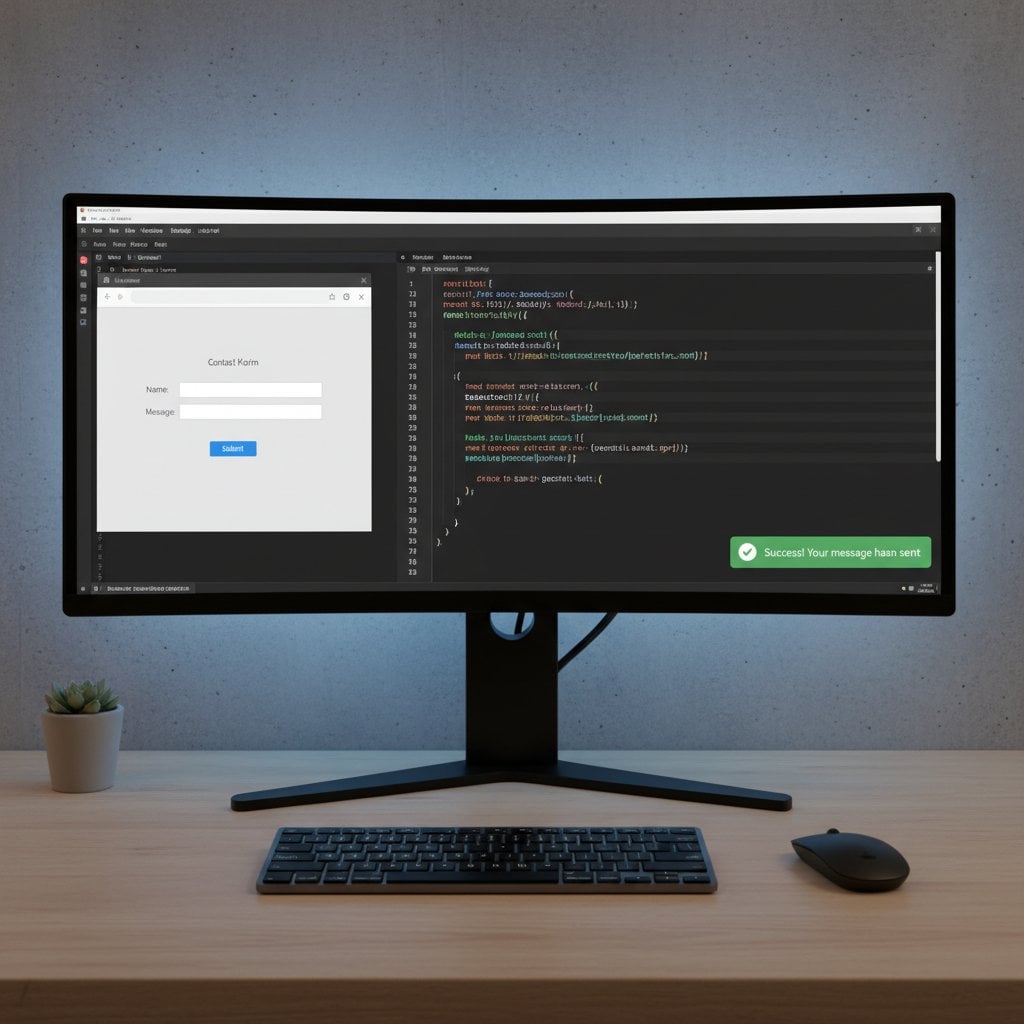
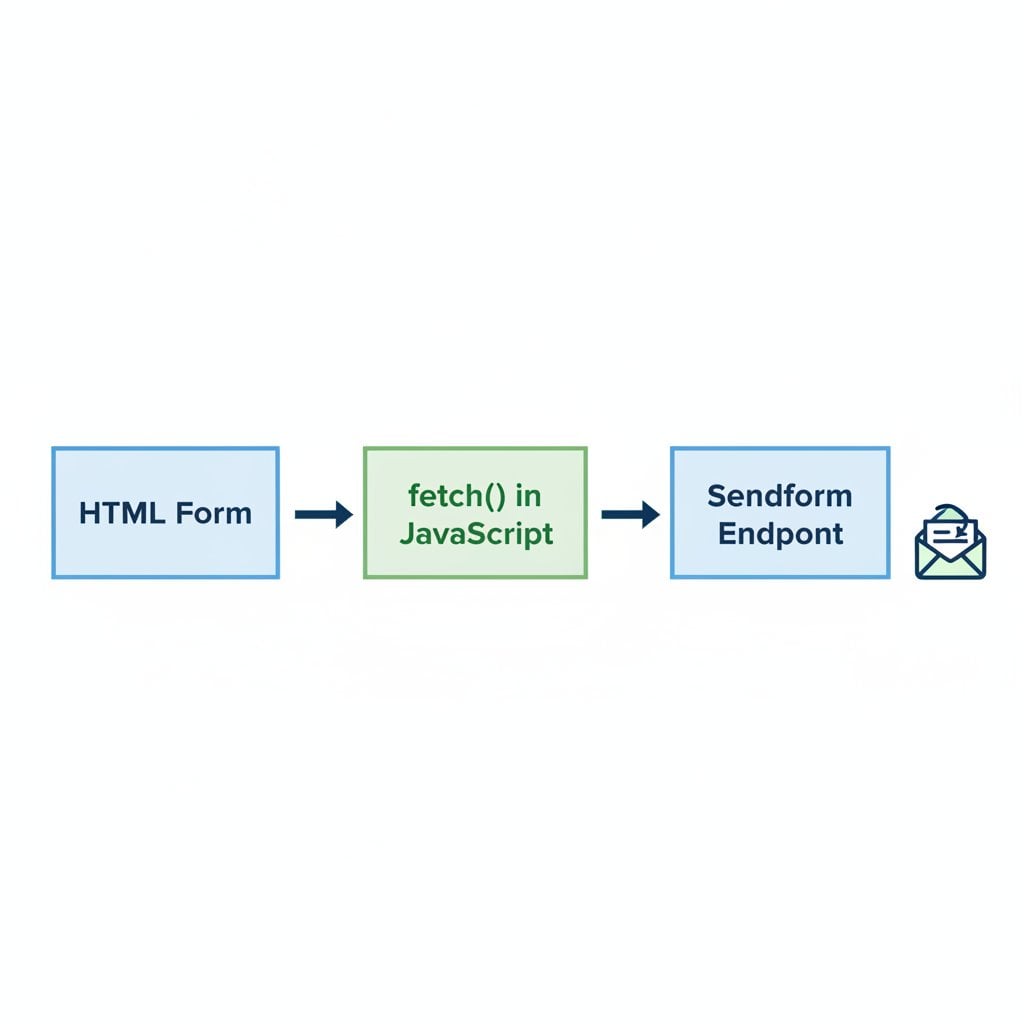
If you have ever built a contact form and watched the entire page reload after a user clicks "Submit," you already know how jarring that experience feels. Using HTML form submit fetch javascript techniques, you can send form data to a backend endpoint in the background, keep the user on the same page, and show a clean success or error message without any full-page refresh. This tutorial walks you through every step, from writing the basic HTML to pointing your fetch() call at a Sendform endpoint so your submissions land directly in your inbox or connected workflow.
Key Takeaways:
- The Fetch API lets you submit form data without a page reload, giving users a smoother experience.
- Capturing the
submitevent and callingpreventDefault()is the foundation of any ajax form submit pattern. - Sendform provides a ready-made endpoint URL, so you need zero backend code to receive and store submissions.
- Proper response handling (showing success or error feedback) is just as important as sending the data correctly.
Content Table
Why Use fetch() Instead of a Default Form Submit
The browser's default form submission behavior does exactly one thing: it serializes the form fields, sends a POST (or GET) request to the action URL, and then loads whatever response the server returns. That means the user sees a white flash, loses their scroll position, and waits for a new page to paint. On a slow connection, this can feel broken.
The Fetch API solves this by making HTTP requests programmatically, entirely in JavaScript, without navigating away. This enables a form submit without page reload pattern that keeps users engaged and lets you control every aspect of the user experience, including loading states, inline validation feedback, and animated success banners.
Additional practical reasons to prefer fetch():
- You can attach custom headers (for example, a CSRF token or an authorization key) that a plain HTML form cannot send.
- You can serialize data as JSON,
FormData, or URL-encoded strings depending on what the endpoint expects. - Error handling is explicit. You decide what "failure" means and how to communicate it.
- It works on any static site, including those hosted on GitHub Pages, Netlify, or a CDN, because the logic lives entirely in the browser.
Note: If you are working with a website builder like Webflow, WordPress, or Hugo, the same fetch() approach applies. See our guide on how to integrate Sendform with your website builder for platform-specific tips.
The Basic HTML Form Setup
Before writing a single line of JavaScript, you need a well-structured HTML form. The key detail here is that you do not need an action attribute pointing anywhere, because JavaScript will handle the submission. You do, however, want meaningful name attributes on every input - these become the field keys in the submitted payload.
<form id="contact-form" novalidate>
  <div>
    <label for="name">Your Name</label>
    <input type="text" id="name" name="name" required placeholder="Jane Smith">
  </div>

  <div>
    <label for="email">Email Address</label>
    <input type="email" id="email" name="email" required placeholder="[email protected]">
  </div>

  <div>
    <label for="message">Message</label>
    <textarea id="message" name="message" rows="5" required></textarea>
  </div>

  <button type="submit">Send Message</button>

  <!-- Feedback area -->
  <div id="form-feedback" aria-live="polite"></div>
</form>
A few things worth noting in this markup:
novalidateon the form element disables native browser validation bubbles, giving you full control over error messaging in JavaScript.- The
id="form-feedback"div witharia-live="polite"is where success and error messages will appear. The ARIA attribute ensures screen readers announce the feedback automatically. - Every input has both an
id(for the label association) and aname(for the form payload).
Capturing the Submit Event
The first step in any javascript form submission is intercepting the browser's default behavior. You do this by listening for the submit event on the form element and immediately calling event.preventDefault().
const form = document.getElementById('contact-form');

form.addEventListener('submit', async function (event) {
  event.preventDefault(); // Stop the default page navigation

  // Basic client-side validation
  const name = form.elements['name'].value.trim();
  const email = form.elements['email'].value.trim();
  const message = form.elements['message'].value.trim();

  if (!name || !email || !message) {
    showFeedback('Please fill in all fields.', 'error');
    return;
  }

  // Proceed to send data (next section)
  await submitForm({ name, email, message });
});
By separating the validation logic from the network call, you keep the code readable and easy to extend. The async keyword on the event handler lets you use await inside it, which makes the Fetch API form data call look synchronous and avoids deeply nested promise chains.
Pointing fetch() at a Sendform Endpoint
This is where the real work happens. Instead of building your own server to receive, store, and forward form submissions, you can use Sendform as your backend. After creating a form in the Sendform dashboard, you get a unique endpoint URL. That URL is all you need.
The submission function below uses the FormData API to build the payload, which Sendform accepts natively:
async function submitForm(data) {
  // Replace this URL with your actual Sendform endpoint
  const SENDFORM_ENDPOINT = 'https://sendform.net/en/YOUR_FORM_ID';

  const formData = new FormData();
  formData.append('name', data.name);
  formData.append('email', data.email);
  formData.append('message', data.message);

  try {
    const response = await fetch(SENDFORM_ENDPOINT, {
      method: 'POST',
      body: formData,
    });

    if (response.ok) {
      showFeedback('Thank you! Your message has been sent.', 'success');
      form.reset();
    } else {
      const errorData = await response.json().catch(() => ({}));
      const errorMsg = errorData.message || 'Something went wrong. Please try again.';
      showFeedback(errorMsg, 'error');
    }
  } catch (networkError) {
    showFeedback('Network error. Check your connection and try again.', 'error');
  }
}
Key decisions made in this code:
- No
Content-Typeheader is set manually. When you pass aFormDataobject as the body, the browser sets the correctmultipart/form-databoundary automatically. - The
response.okcheck covers all 2xx HTTP status codes, not just 200. This is more robust than comparingresponse.status === 200. - The outer
try/catchcatches network-level failures (DNS errors, offline state) thatresponse.okwould never see.
Handling the Response - Success and Error Messages
Sending the data is only half the job. Users need immediate, clear feedback. The showFeedback() helper function referenced above writes a message into the feedback div you added to the HTML:
function showFeedback(message, type) {
  const feedbackEl = document.getElementById('form-feedback');
  feedbackEl.textContent = message;
  feedbackEl.className = type === 'success' ? 'feedback-success' : 'feedback-error';
}
This is intentionally minimal. In a real project you might swap textContent for an animated component or a toast notification library, but the pattern stays the same: update the DOM based on the outcome of the fetch() call.
For more advanced scenarios, such as redirecting to a custom thank-you page or triggering a downstream automation after submission, check out our article on how to automate form workflows with webhooks, Zapier, and APIs.
Best Practices and Tips
Getting the code to work is one thing. Shipping it in a way that holds up in production is another. Here are the most important tips to keep in mind:
- Disable the submit button during the request. Set
button.disabled = truebefore callingfetch()and re-enable it in afinallyblock. This prevents duplicate submissions if the user clicks multiple times. - Show a loading state. Change the button text to "Sending..." or add a spinner class while the request is in flight. Users who see no feedback often assume nothing happened and click again.
- Validate on the server side too. Client-side validation is for user experience. Sendform and any backend service should treat all incoming data as untrusted.
- Use HTTPS everywhere. Sending form data over plain HTTP exposes user input in transit. Sendform endpoints are HTTPS by default, but make sure your own page is served over HTTPS as well.
- Add spam protection. A honeypot field or a CAPTCHA integration reduces junk submissions significantly. For a deeper look at this topic, see our guide on spam protection best practices for forms.
- Test the error path deliberately. Temporarily change the endpoint URL to something invalid and confirm your error message appears. Most developers only test the happy path.
- Keep the endpoint URL out of version control. If your project is open source, store the Sendform endpoint in an environment variable or a config file that is listed in
.gitignore.
Static site users: If your project is a Hugo, Eleventy, or plain HTML site with no server, the fetch() approach described here is the recommended method. Read more in our guide to serverless form handling for static sites.
Conclusion
Replacing a default form submission with a fetch() call is one of the highest-impact improvements you can make to any contact or lead-capture form. The result is a faster, more professional experience that keeps users on your page and gives you full control over feedback messaging. Pair that with a Sendform endpoint and you eliminate the need for any server-side code entirely. Your form is live, your submissions reach your inbox, and your users never see a jarring page reload. Create your free Sendform endpoint today and have your first submission delivered in minutes.
Frequently Asked Questions
Yes. Because fetch() runs entirely in the browser, it works on static HTML sites, JAMstack projects, and any platform that serves HTML. You do not need a server of your own. The only requirement is an endpoint (like a Sendform URL) that can receive the POST request.
fetch() is the modern replacement for XMLHttpRequest. It uses Promises, supports async/await, and has a cleaner API. For new projects, fetch() is always preferred. Both achieve the same ajax form submit result, but fetch() requires significantly less boilerplate code.
No. When you pass a FormData object as the body, the browser automatically sets the Content-Type to multipart/form-data and includes the correct boundary string. Setting it manually would actually break the request by omitting that boundary value.
Sign up at Sendform, create a new form in the dashboard, and copy the generated endpoint URL. Paste that URL as the target in your fetch() call. Submissions will be forwarded to your configured email address immediately.
A network failure causes the fetch() Promise to reject, which is caught by the outer try/catch block in the example code. The user sees the "Network error" message you defined. The submission is not queued automatically; the user must try again once connectivity is restored.